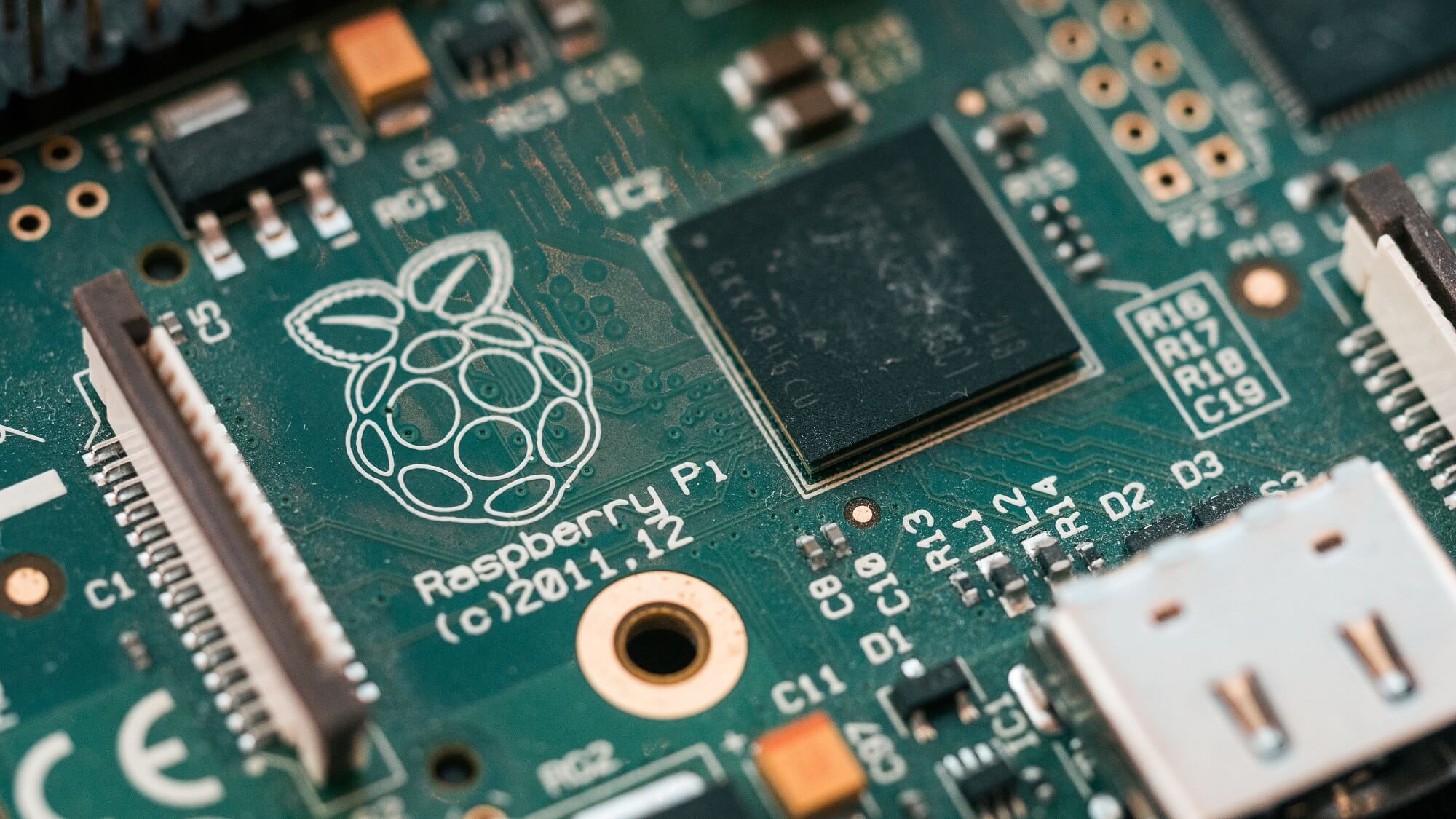
Our CNC machines are all equipped with a Raspberry Pi 4B, making it very easy to set up a shared folder that allows you to send files and G-codes over your local network. This article explains how to achieve this in a few steps.
Access a Folder from your PC/MAC on your CNC
This is our recommended setting:
Configuring a shared folder on your personal computer so you can access your files when navigating on your CNC machine. This way, you can work on your projects on your computer, save the G-code files in this shared folder, then go to your machine and open those files directly without the need for a USB key.
The only condition: both the computer and the machine have to be connected to the same internet network to see the files on the machine (it can be by Ethernet cable or WiFi, it doesn't matter as long as the network is the same).
1.A. Windows 11 - PC Configuration
First we need to setup the shared folder on your Windows 11 PC.
1.1. Windows user with password
To access the folder from an external machine, you'll be requested the password of a user of the PC.
- For security reasons, we recommend creating a new separate account that has no access to important things on your computer and will be only used to share the files.
Go to Settings > Accounts Other Users > Add an account, and keep note of the Username and Password you choose.
- If you don't want to create one, or if your network is very secure, you can also use your regular Windows account.
But if you use a PIN and not a password to connect to your account, it won't be usable from an external machine: you will have to create a real password in Settings > Accounts > Sign-in options.
1.2. Shared folder configuration
- Right-click on the folder you want to share > Properties > Sharing > Advanced Sharing
- Check "Share this folder" (you can put a sharing name if you want it to be different than the folder's name)
- Click OK

- We'll now give permissions to the account we just created so it can access the folder.
- Click on Share > select the account and click Add (in my example I called the account "admin").
- Give Read/Write permissions to the account, then click Share and Finish.
(if you made the settings while logged as the sharing account, it will already be "owner" of the folder which is fine).
- If a pop-up to activate Windows network discovery appears, click Yes.

- Note the PC name (e.g., "MYPC") and the Folder's Share Name (e.g., "shared-folder") to enter the info in the machine later.
They are shown in the sharing window in "Network path" (in my example the path is "\\QUENTINMEKANIKA\shared-folder" so, my PC name = QUENTINMEKANIKA and Share name = shared-folder).
1.B. Mac OS Configuration
1.1. User with password
To access the folder from an external machine, you'll be requested the password of a user of the Mac.
- For security reasons, we recommend creating a new separate account that has no access to important things on your computer and will be only used to share the files.
- Create an account for that purpose and remember its username and password for later use. (if you put spaces in the username, you'll have to enter it without spaces in the machine, in my case for example it will be "macuser")
- If you don't want to create one, or if your network is very secure, you can also use your regular account but be sure to use that only on a secured personal network.
1.1. Shared folder configuration
- On your Mac, choose Apple menu > System Settings, click General in the sidebar and activate File Sharing.
- Take note of the Computer's Local Hostname at the bottom of the window for later use.

- Click the Info button next to File Sharing.
- Add the folder you want to share with the +.
- Take note of the name of the shared folder too for the next steps.

- Click Options, then turn on “Share files and folders using SMB” and Check the box for "Windows File Sharing" in front of the Mac User you'll be using to share the files.

2. CNC Machine Configuration
IMPORTANT: Using the Virtual Keyboard
In several steps you will be required to type some text on the machine, but it doesn't have a keyboard.
Connecting an external keyboard to the machine can bring some complications, so here's a solution: the virtual keyboard.
- Go to Raspberry Logo > Accessories > Virtual Keyboard (it may also be accessible by a shortcut on the taskbar)
- A keyboard will appear on the screen, you can use it as a regular keyboard using the touchscreen.
- Special characters are accessible through the shift button on the left
2.1. Connecting the CNC to the Internet
If it is not the case yet, we need to give internet access to the Raspberry Pi (the computer) of the machine. Remember it has to be on the same network as the computer sharing the file.
The easiest way is to connect an Ethernet cable at the back of the control unit. Otherwise you can connect it by WiFi this way:
- Turn on your control unit and wait for the system to start.
- Minimize the PlanetCNC window to see the desktop.
- Click on the bottom-right WiFi icon (2 bars with red crosses) and turn on the WiFi.
- You should see a list of all the local networks available after a while.
- Click on the name of your network and type the security key using the virtual keyboard.

2.2. The File Sharing Configuration Script for the CNC Machine
- Download these setup and uninstallation scripts and place the 2 files on a USB drive.
1/ SETUP SCRIPT DOWNLOAD
2/ UNINSTALL SCRIPT DOWNLOAD
- Plug the USB drive into the machine and Copy the 2 files to the Raspberry Pi's Desktop (you can drag and drop from the USB drive or press and hold on the files to access the right click menu).
- Open a Terminal (Black icon in the taskbar at the bottom)
- Use the virtual keyboard to enter this line (exactly) then press Enter:
bash ~/Desktop/setup_fileshare.sh
- The installation script will begin, follow the instructions in the terminal.
- When there is a list, type the number of your choice then press Enter (e.g. 1 for English, 2 for French)
- When a question ends with y/n you have to type Y for yes or N for no, then press Enter.

- Complete the instructions until it says you are done, then restart the machine:
Raspberry logo > Shutdown > Reboot.
That's it !
3. How it works
- The shared folder will be accessible on the CNC in the new folder you specified (by default it will be the name of your computer and folder) and visible in the explorer just like a regular folder.
- As long as your computer is on the same network, you'll have access to the files in the shared folder.
- You can add more users sharing their files or more folders to share by launching the same script again. You can then choose to add the user/folder to the same folder or create a separate one.
- If you can't see files inside the folder in the explorer: go to View > Reload Folder to refresh the folder.
4. Common Issues in the configuration script
- Failed to access the computer:
You are probably not on the same network, or your IP configuration blocks the connection.
- "Could not resolve"
The computer name entered is probably wrong or it cannot be accessed.
Try using the computer's IP address (e.g., 192.168.1.1) instead of its name to see.
5. Uninstall
You can uninstall one or all users/shared folders by launching the uninstall script with this command in the terminal:
bash ~/Desktop/uninstall_fileshare.sh
Then follow the instructions on screen just like for installation.
Gemeinsamer Ordner auf Ihrer CNC-Maschine gespeichert (Windows 10)
1. Konfigurieren Sie Ihren Computer
Zunächst müssen Sie Ihren Computer für die Freigabe von Dateien über Ihr lokales Netzwerk konfigurieren. Navigieren Sie zur Liste der WiFi-Netzwerke, stellen Sie sicher, dass Ihr Computer mit dem richtigen Netzwerk verbunden ist, und klicken Sie auf Eigenschaften.

Vergewissern Sie sich, dass das Profil Privates Netzwerk ausgewählt ist.

Aktivieren Sie dann die Netzwerkerkennung und die Optionen für die Datei- und Druckerfreigabe, indem Sie die folgenden Schritte ausführen:
- Öffnen Sie die Systemsteuerung.
- Wählen Sie Netzwerk und Internet > Netzwerk- und Freigabecenter > Erweiterte Freigabeeinstellungen.
- Wählen Sie Netzwerkerkennung einschalten.
- Wählen Sie unter Privat die Option Datei- und Druckerfreigabe ein schalten.
- Speichern Sie die Änderungen.

Öffnen Sie schließlich die Systemsteuerung, wählen Sie Programme und klicken Sie auf Windows-Funktionen ein- oder ausschalten.

Blättern Sie nach unten und stellen Sie sicher, dass SMB 1.0 Client aktiviert ist.

Starten Sie Ihren Computer neu.
2. Verbinden Sie Ihre CNC-Maschine mit dem Netzwerk
Schalten Sie Ihr Steuergerät ein und warten Sie, bis das System startet.
Minimieren Sie das PlanetCNC-Fenster, um den Desktop zu sehen. Klicken Sie auf das WiFi-Symbol unten rechts und schalten Sie das WiFi ein.

Sie sollten eine Liste aller verfügbaren lokalen Netzwerke sehen. Klicken Sie auf den Namen Ihres Netzwerks und geben Sie bei Bedarf das Passwort ein.
Sie können Ihr Steuergerät auch direkt mit einem Ethernet-Kabel an Ihren Router anschließen und den Teil der WiFi-Konfiguration überspringen.
Starten Sie den Raspberry Pi neu, indem Sie auf das Raspberry-Symbol klicken, sich abmelden und dann neu starten.

3. Freigabe von Dateien starten
Gehen Sie zurück zu Ihrem Computer, öffnen Sie den Datei-Explorer und navigieren Sie zu Netzwerk. Sie sollten ein Gerät namens RASPBERRYPI sehen.

Doppelklicken Sie auf dieses Gerät, um auf den freigegebenen Ordner Ihres Computers zuzugreifen.
Wenn Sie dazu aufgefordert werden, können Sie den Standardbenutzernamen und das Passwort des Raspberry Pi eingeben:
username: pi
password: raspberry
Sie können nun auf den freigegebenen Ordner zugreifen und Dateien dorthin kopieren. Die Dateien werden automatisch im gleichen Ordner auf Ihrem Computer angezeigt.


Um von Ihrem Computer aus auf diesen Ordner zuzugreifen, klicken Sie einfach auf die Verknüpfung unten links und navigieren Sie zu "Shared".
Gemeinsamer Ordner auf Ihrer CNC-Maschine gespeichert (Mac OS)
Vergewissern Sie sich vor dem Start, dass Ihr Computer mit Ihrem lokalen Netzwerk verbunden ist.
Schalten Sie Ihr Steuergerät ein und warten Sie, bis das System startet.
Minimieren Sie das PlanetCNC-Fenster, um den Desktop zu sehen. Klicken Sie auf das WiFi-Symbol unten rechts und schalten Sie das WiFi ein.
Sie sollten eine Liste aller verfügbaren lokalen Netzwerke sehen. Klicken Sie auf den Namen Ihres Netzwerks und geben Sie bei Bedarf das Passwort ein.
Sie können Ihr Steuergerät auch direkt mit einem Ethernet-Kabel an Ihren Router anschließen und den Teil der WiFi-Konfiguration überspringen.
Starten Sie den Raspberry Pi neu, indem Sie auf das Raspberry-Symbol klicken, sich abmelden und dann neu starten.
Gehen Sie zurück zu Ihrem Mac-Computer, öffnen Sie den Finder und navigieren Sie zu Netzwerk. Sie sollten ein Gerät namens RASPBERRYPI sehen. Doppelklicken Sie darauf.

Wenn Sie dazu aufgefordert werden, können Sie den Standardbenutzernamen und das Passwort des Raspberry Pi eingeben:
username: pi
password: raspberry
Sie können nun auf den freigegebenen Ordner zugreifen und Dateien darin kopieren. Die Dateien werden automatisch im gleichen Ordner auf Ihrem Computer angezeigt.
Um von Ihrem Computer aus auf diesen Ordner zuzugreifen, klicken Sie einfach auf die Verknüpfung unten links und navigieren Sie zu "Shared".