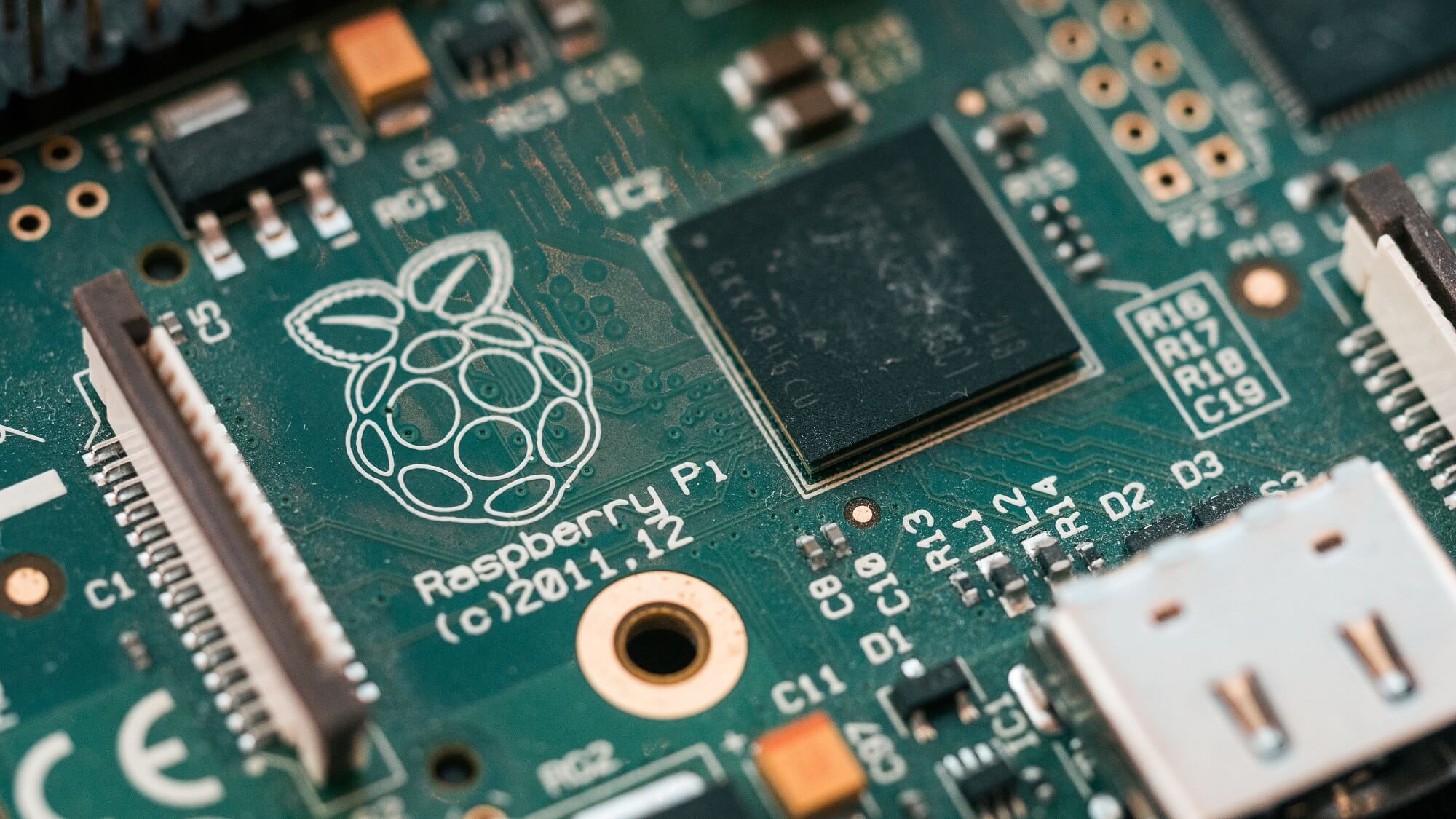
Nos machines CNC sont toutes équipées d'un Raspberry Pi 4B. Il est donc très facile de mettre en place un dossier partagé qui te permet d'envoyer des fichiers et des G-codes sur ton réseau local. Cet article t'explique comment y parvenir en quelques étapes.
Accéder à un dossier stocké sur votre ordinateur depuis votre CNC
Voici la configuration que nous vous recommandons :
Configurez un dossier partagé sur votre ordinateur personnel afin de pouvoir accéder à vos fichiers lorsque vous travaillez sur votre machine CNC. Ainsi, vous pouvez travailler sur vos projets sur votre ordinateur, enregistrer les fichiers G-code dans ce dossier partagé, puis vous rendre à votre machine et ouvrir ces fichiers directement, sans avoir besoin d'une clé USB.
Seule condition : l'ordinateur et l'appareil doivent être connectés au même réseau Internet pour pouvoir consulter les fichiers sur l'appareil (que ce soit par câble Ethernet ou par Wi-Fi, peu importe, tant que le réseau est le même).
1.A. Windows 11 - Configuration du PC
Nous devons d'abord configurer le dossier partagé sur votre PC sous Windows 11.
1.1. Utilisateur Windows avec mot de passe
Pour accéder au dossier depuis un ordinateur externe, on vous demandera le mot de passe d'un utilisateur de ce PC.
- Pour des raisons de sécurité, nous vous recommandons de créer un nouveau compte distinct qui n'aura pas accès aux données importantes de votre ordinateur et qui servira uniquement à partager des fichiers.
- Allez dans Paramètres > Comptes > Autres utilisateurs > Ajouter un compte, et notez bien le nom d'utilisateur et le mot de passe que vous choisissez.
- Si vous ne souhaitez pas en créer un, ou si votre réseau est très sécurisé,vous pouvez également utiliser votre compte Windows habituel.
Mais si vous utilisez un code PIN et non un mot de passe pour vous connecter à votre compte, celui-ci ne sera pas accessible depuis un ordinateur externe : vous devrez créer un véritable mot de passe dans Paramètres > Comptes > Options de connexion.
1.2. Configuration du dossier partagé
- Cliquez avec le bouton droit de la souris sur le dossier que vous souhaitez partager > Propriétés > Partage > Partage avancé
- Cochez la case « Partager ce dossier » (vous pouvez saisir un nom de partage si vous souhaitez qu'il soit différent du nom du dossier)
- Cliquez sur OK

- Nous allons maintenant attribuer des autorisations au compte que nous venons de créer afin qu'il puisse accéder au dossier.
- Cliquez sur Partager > sélectionnez le compte puis cliquez sur Ajouter (dans mon exemple, j'ai nommé le compte « admin »).
- Attribuez des autorisations Lecture/Écriture au compte, puis cliquez sur Partager et Terminer.
- (Si vous avez effectué ces réglages en étant connecté avec le compte de partage, celui-ci sera déjà « propriétaire » du dossier, ce qui convient parfaitement).
- Si une fenêtre contextuelle vous invitant à activer la découverte du réseau Windows s'affiche, cliquez sur Oui.

- Notez le nom de l'ordinateur (par exemple, « MYPC ») et le nom de partage du dossier (par exemple, « shared-folder ») afin de saisir ces informations ultérieurement sur l'ordinateur.
- Ils apparaissent dans la fenêtre de partage sous « Chemin d'accès réseau » (dans mon exemple, le chemin est « \\QUENTINMEKANIKA\shared-folder », donc le nom de mon PC = QUENTINMEKANIKA et le nom du partage = shared-folder).
1.B. Configuration Mac OS
1.1. Utilisateur et mot de passe
To access the folder from an external machine, you'll be requested the password of a user of the Mac.
- Pour des raisons de sécurité, nous vous recommandons de créer un nouveau compte distinct qui n'aura pas accès aux données importantes de votre ordinateur et qui sera utilisé uniquement pour partager des fichiers.
- Créez un compte à cet effet et notez bien son nom d'utilisateur et son mot de passe pour pouvoir les utiliser ultérieurement (Si vous mettez des espaces dans le nom d'utilisateur, vous devrez le saisir sans espaces sur la machine; dans mon cas, par exemple, ce sera « macuser ».
- Si vous ne souhaitez pas en créer un, ou si votre réseau est très sécurisé, vous pouvez également utiliser votre compte habituel, mais veillez à ne l'utiliser que sur un réseau personnel sécurisé.
1.1. Configuration du dossier partagé
- Sur votre Mac, sélectionnez le menu Apple > Préférences Système, cliquez sur Général dans la barre latérale et activez Partage de fichiers.
- Notez le Nom d'hôte local de l'ordinateur indiqué en bas de la fenêtre (il sera demandé plus tard).

- Cliquez sur le bouton Info à côté de « Partage de fichiers ».
- Ajoutez le dossier que vous souhaitez partager à l'aide du signe +.
- Notez également le nom de ce dossier partagé pour les étapes suivantes.

- Cliquez sur Options, puis activez l’option « Partager des fichiers et des dossiers via SMB » et cochez la case « Partage de fichiers Windows » en face de l’utilisateur Mac que vous utiliserez pour partager les fichiers.

2. Configuration de la CNC Mekanika
IMPORTANT : Utilisation du clavier virtuel
À plusieurs reprises, vous devrez saisir du texte sur la machine, mais celui-ci ne dispose pas de clavier.
Le branchement d'un clavier externe sur l'appareil peut s'avérer compliqué ; voici donc une solution : le clavier virtuel.
- Allez dans Logo Raspberry > Accessories > Virtual Keyboard (vous pouvez également y accéder via un raccourci dans la barre des tâches)
- Un clavier s'affichera à l'écran ; vous pouvez l'utiliser comme un clavier classique en utilisant l'écran tactile.
- Les caractères spéciaux sont accessibles via la touche Maj/Shift située à gauche
2.1. Connexion de la CNC à Internet
Si ce n'est pas encore le cas, nous devons configurer l'accès à Internet pour le Raspberry Pi (l'ordinateur) de la machine. N'oubliez pas qu'il doit se trouver sur le même réseau que l'ordinateur qui partage le fichier.
Le plus simple est de brancher un câble Ethernet à l'arrière de l'unité de commande. Sinon, vous pouvez vous connecter via Wi-Fi en procédant comme suit :
- Allumez votre machine et attendez que le système démarre.
- Réduisez la fenêtre PlanetCNC pour afficher le bureau.
- Cliquez sur l'icône Wi-Fi (2 barres avec des croix rouges) en bas à droite et activez le Wi-Fi.
- Au bout de quelques instants, vous devriez voir s'afficher la liste de tous les réseaux locaux disponibles.
- Cliquez sur le nom de votre réseau et saisissez la clé de sécurité à l'aide du clavier virtuel.

2.2. Le script de configuration de partage sur la CNC
- Téléchargez ces 2 scripts d'installation et de désinstallation et copiez les deux fichiers sur une clé USB.
1/ INSTALLATION SCRIPT
2/ DESINSTALLATION SCRIPT
- Branchez la clé USB sur la machine et copiez les 2 fichiers sur le bureau du Raspberry Pi (vous pouvez les glisser-déposer depuis la clé USB ou maintenir le clic sur un fichier pour accéder au menu contextuel du clic droit).
- Ouvrez un terminal (icône noire dans la barre des tâches en bas)
- Utilisez le clavier virtuel pour saisir cette ligne (à la lettre près), puis appuyez sur Entrée :
bash ~/Desktop/setup_fileshare.sh
- Le script d'installation va démarrer ; suivez les instructions qui s'affichent dans le terminal.
- Lorsqu'une liste s'affiche, saisissez le numéro de votre choix, puis appuyez sur Entrée.
- Lorsqu'une question se termine par « o/n », vous devez saisir « O » pour « oui » ou « N » pour « non », puis appuyer sur Entrée.

- Suivez les instructions jusqu'à ce que le message indiquant que l'opération est terminée s'affiche, puis redémarrez la machine:
Raspberry logo > Shutdown > Reboot.
C'est terminé !
3. Comment ça marche
- Le dossier partagé sera accessible sur la CNC dans le nouveau dossier que vous avez spécifié (par défaut, il portera le nom de votre ordinateur et du dossier) et apparaîtra dans l'Explorateur comme n'importe quel autre dossier.
- Tant que votre ordinateur est connecté au même réseau, vous aurez accès aux fichiers du dossier partagé.
- Vous pouvez ajouter d'autres utilisateurs pour partager leurs fichiers ou d'autres dossiers à partager en relançant le même script. Vous pouvez ensuite choisir d'ajouter l'utilisateur ou le dossier au dossier déjà existant ou d'en créer un nouveau.
- Si vous ne voyez pas les fichiers contenus dans le dossier dans l'Explorateur : allez dans View > Reload folder pour actualiser le dossier.
4. Problèmes courants dans le script de configuration
- Impossible d'accéder à l'ordinateur :
Vous n'êtes probablement pas sur le même réseau, ou votre configuration IP bloque la connexion.
- « Impossible de résoudre ».
Le nom du PC est probablement pas juste où il n'est pas accessible.
Essayez d'utiliser l'adresse IP de l'ordinateur (par exemple, 192.168.1.1) à la place de son nom pour voir.
5. Désinstaller
Vous pouvez désinstaller un seul ou plusieurs dossiers utilisateur/partagés en exécutant le script de désinstallation à l'aide de la commande suivante dans le terminal :
bash ~/Desktop/uninstall_fileshare.sh
Suivez ensuite les instructions à l'écran, comme pour l'installation.
Dossier partagé stocké sur votre machine CNC (Windows 10)
Étape 1 : configurer votre ordinateur
Tout d'abord, vous devez configurer votre ordinateur pour partager des fichiers sur votre réseau local. Naviguez jusqu'à la liste des réseaux WiFi, assurez-vous que votre ordinateur est connecté au bon réseau, puis cliquez sur Propriétés.

Vérifiez que le profil "Réseau Privé" (Private Network) est sélectionné.

Ensuite, activez les options de découverte du réseau et de partage de fichiers et d'imprimantes en suivant ces étapes :
- Ouvrez le panneau de configuration (Control Panel)
- Sélectionnez Réseau et Internet > Centre Réseau et Partage > Paramètres de partage avancés (Network and Internet > Network and Sharing Center > Advanced sharing settings).
- Sélectionnez l'option "Activer la découverte du réseau" (Turn on network discovery).
- Sélectionnez l'option "Activer le partage de fichiers et d'imprimantes" (Turn on file and printer sharing) sous la section "Privé" (Private).
- Enregistrez les modifications.

Enfin, ouvrez le Panneau de configuration (Control Panel), sélectionnez Programmes (Programs), puis cliquez sur Activer ou désactiver les fonctionnalités de Windows (Turn Windows features on or off).

Faites défiler vers le bas et vérifiez que la case Client SMB 1.0 est cochée.

Redémarrez votre ordinateur.
Étape 2 : connectez votre machine CNC au réseau
Allumez l'unité de commande de votre machine et attendez que le système démarre.
Minimisez la fenêtre PlanetCNC pour voir le bureau. Cliquez sur l'icône WiFi en bas à droite et activez le WiFi.

Vous devriez voir une liste de tous les réseaux locaux disponibles. Cliquez sur le nom de votre réseau et tapez le mot de passe si nécessaire.
Vous pouvez également connecter directement votre unité de commande à votre routeur à l'aide d'un câble Ethernet et sauter la partie de configuration du WiFi.
Redémarrez le Raspberry Pi en cliquant sur l'icône Raspberry, Déconnexion, puis Redémarrage (Reboot).

Étape 3 : commencer à partager des fichiers
De retour sur votre ordinateur, ouvrez l'explorateur de fichiers et naviguez jusqu'à Réseau (Network). Vous devriez voir un périphérique appelé RASPBERRYPI.

Double-cliquez sur ce périphérique pour accéder au dossier partagé (Shared folder) de votre machine.
Si vous y êtes invité, vous pouvez saisir le nom d'utilisateur et le mot de passe par défaut du Raspberry Pi
- Nom d'utilisateur : pi
- Mot de passe : raspberry
Vous pouvez maintenant accéder au dossier partagé et y copier des fichiers. Ils apparaîtront automatiquement dans le même dossier sur votre machine.


Pour accéder à ce dossier depuis votre machine, il suffit de cliquer sur le raccourci en bas à gauche et de naviguer jusqu'à Shared.
Dossier partagé stocké sur votre machine CNC (Mac OS)
Assurez-vous que votre ordinateur est connecté à votre réseau local avant de commencer.
Allumez l'unité de commande de votre machine et attendez que le système démarre.
Minimisez la fenêtre PlanetCNC pour voir le bureau. Cliquez sur l'icône WiFi en bas à droite et activez le WiFi.
Vous devriez voir une liste de tous les réseaux locaux disponibles. Cliquez sur le nom de votre réseau et tapez le mot de passe si nécessaire.
Vous pouvez également connecter directement votre unité de commande à votre routeur à l'aide d'un câble Ethernet et sauter la partie de configuration du WiFi.
Redémarrez le Raspberry Pi en cliquant sur l'icône Raspberry, Déconnexion, puis Redémarrage (Reboot).
De retour sur votre ordinateur, ouvrez le Finder et naviguez jusqu'à Réseau (Network). Vous devriez voir un périphérique appelé RASPBERRYPI. Double-cliquez dessus.

Si vous y êtes invité, vous pouvez saisir le nom d'utilisateur et le mot de passe par défaut du Raspberry Pi
- Nom d'utilisateur : pi
- Mot de passe : raspberry
Vous pouvez maintenant accéder au dossier partagé et y copier des fichiers. Ils apparaîtront automatiquement dans le même dossier sur votre machine.
Pour accéder à ce dossier depuis votre machine, il suffit de cliquer sur le raccourci en bas à gauche et de naviguer jusqu'à Shared.